> ## Documentation Index
> Fetch the complete documentation index at: https://docs.zerorank.ai/llms.txt
> Use this file to discover all available pages before exploring further.
# Integrations
> Connect ZeroRank to the tools where you publish and chat.
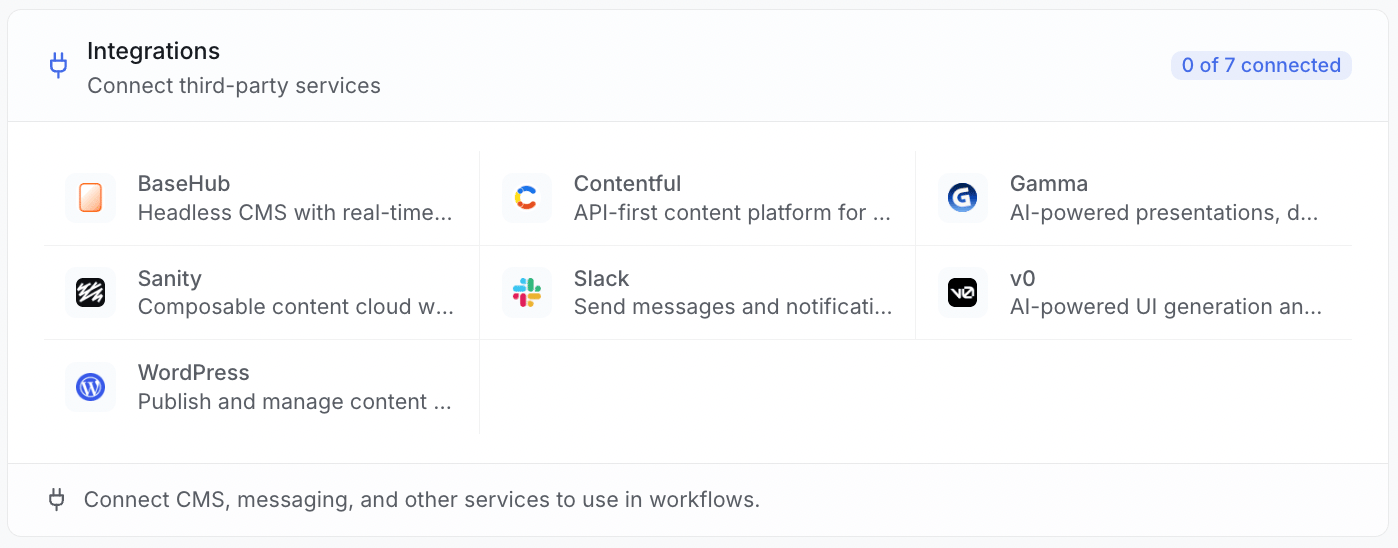
Integrations connect ZeroRank to the other tools your team already uses. Once a tool is connected, your [workflows](/workflows/overview) and content publishing can reach it. For example, a workflow can post an update to Slack, or ZeroRank can publish a new article straight to your WordPress site.
 ## Connections are shared by your whole team
Every connection lives at the workspace level. That means you connect a tool once, and everyone in your workspace can use it. You do not each need your own login. One member sets it up, and the whole team is ready to go.
A workspace is your shared team space in ZeroRank. Members in the same workspace share connections, prompts, and results.
## Where to connect a tool
You set up connections from your workspace settings.
Open the **Workspace** tab and find the **Integrations** section.
Click the tile for the tool you want, like Slack or WordPress.
Click **Connect account** and follow the steps for that tool.
## Two ways to connect
How you connect depends on the tool. Some use a one-click sign-in. Others ask you to paste a key.
These tools let you sign in with a popup. You approve the connection there, and ZeroRank gets the access it needs. There are no keys to copy.
* **Slack**
* **Contentful**
Click **Connect account**, approve in the popup, and you are done.
These tools ask for a key (a secret code) you copy from the other tool. You paste it into ZeroRank to link the two.
* **WordPress**
* **Sanity**
* **BaseHub**
* **v0**
* **Gamma**
Open the other tool, copy the key it gives you, then paste it into ZeroRank and save.
Keys are secret, like a password. Do not share them or post them in public. ZeroRank hides them after you save.
## Check that a connection is healthy
ZeroRank tests every connection the moment you save it. This tells you right away if something is wrong.
Each connection shows its health:
* **Active** — the connection is turned on and ready to use.
* **Verified** — the last test worked and the tool answered.
* **Last error** — if a test failed, this shows what went wrong.
You can re-test a connection any time. This is handy if you changed a key or fixed a setting in the other tool. If a test fails, check the key and try again, or email [support@zerorank.ai](mailto:support@zerorank.ai).
## Where connections get used
After a tool is connected, it shows up in two places:
* **Workflow steps** — a [workflow](/workflows/overview) can use a connected tool, like sending a message to Slack.
* **Content publishing** — when ZeroRank [creates content](/improve/create-content), it can publish to a connected site like WordPress.
## Keep going
Connect a WordPress site to publish articles.
Connect Contentful, Sanity, BaseHub, and more.
Send messages and link AI helpers like v0 and Gamma.
Let your AI assistant read your ZeroRank data.
Read results and manage your data from your own code.
## Connections are shared by your whole team
Every connection lives at the workspace level. That means you connect a tool once, and everyone in your workspace can use it. You do not each need your own login. One member sets it up, and the whole team is ready to go.
A workspace is your shared team space in ZeroRank. Members in the same workspace share connections, prompts, and results.
## Where to connect a tool
You set up connections from your workspace settings.
Open the **Workspace** tab and find the **Integrations** section.
Click the tile for the tool you want, like Slack or WordPress.
Click **Connect account** and follow the steps for that tool.
## Two ways to connect
How you connect depends on the tool. Some use a one-click sign-in. Others ask you to paste a key.
These tools let you sign in with a popup. You approve the connection there, and ZeroRank gets the access it needs. There are no keys to copy.
* **Slack**
* **Contentful**
Click **Connect account**, approve in the popup, and you are done.
These tools ask for a key (a secret code) you copy from the other tool. You paste it into ZeroRank to link the two.
* **WordPress**
* **Sanity**
* **BaseHub**
* **v0**
* **Gamma**
Open the other tool, copy the key it gives you, then paste it into ZeroRank and save.
Keys are secret, like a password. Do not share them or post them in public. ZeroRank hides them after you save.
## Check that a connection is healthy
ZeroRank tests every connection the moment you save it. This tells you right away if something is wrong.
Each connection shows its health:
* **Active** — the connection is turned on and ready to use.
* **Verified** — the last test worked and the tool answered.
* **Last error** — if a test failed, this shows what went wrong.
You can re-test a connection any time. This is handy if you changed a key or fixed a setting in the other tool. If a test fails, check the key and try again, or email [support@zerorank.ai](mailto:support@zerorank.ai).
## Where connections get used
After a tool is connected, it shows up in two places:
* **Workflow steps** — a [workflow](/workflows/overview) can use a connected tool, like sending a message to Slack.
* **Content publishing** — when ZeroRank [creates content](/improve/create-content), it can publish to a connected site like WordPress.
## Keep going
Connect a WordPress site to publish articles.
Connect Contentful, Sanity, BaseHub, and more.
Send messages and link AI helpers like v0 and Gamma.
Let your AI assistant read your ZeroRank data.
Read results and manage your data from your own code.