> ## Documentation Index
> Fetch the complete documentation index at: https://docs.zerorank.ai/llms.txt
> Use this file to discover all available pages before exploring further.
# Prompts
> The questions ZeroRank asks AI engines for you every day.
A **prompt** is a question we ask AI engines for you. ZeroRank runs your prompts every day and saves each answer as a [chat](/start/glossary). From those answers, it measures whether your brand shows up, where it ranks, how it was talked about, and which websites the AI cited.
Think of a prompt as a question a real customer might type, like "best running shoes for flat feet" or "easiest accounting tool for freelancers."
 ## The three lists of prompts
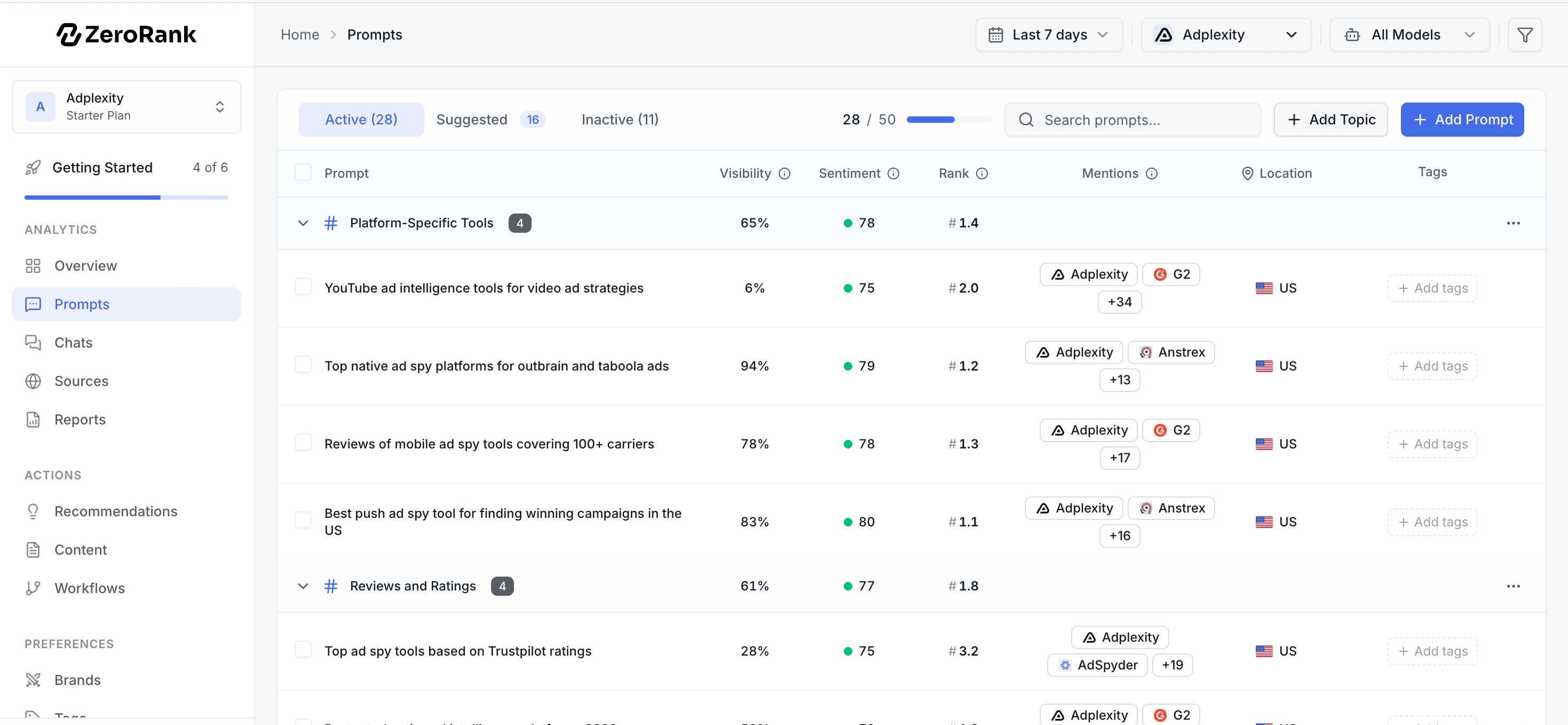
Your prompts live in three lists. Each list does a different job.
These prompts are turned on. ZeroRank asks them on every scheduled run.
On most plans that means once a day. On AppSumo lifetime plans, prompts run once a week.
Active prompts count toward your plan limit.
These are ideas ZeroRank wrote for you. They are waiting for your yes or no.
A suggested prompt is not running yet. Accept it to start tracking, or reject it to clear it away.
These prompts are paused. ZeroRank keeps them but does not ask them.
Their past answers stay saved. Turn one back on any time to start tracking it again.
## How suggestions work
ZeroRank writes suggested prompts for you, so you do not start from a blank page. It builds them from what it knows about your company and your [topics](/tracking/topics-and-tags).
For each suggestion, you have two choices:
* **Accept** it. The prompt moves to your active list and starts running.
* **Reject** it. The prompt goes away and stops cluttering your list.
Want more ideas? Click **Generate** to have ZeroRank write a fresh batch of suggestions.
Track the questions your real customers actually ask. Those answers tell you the most about how buyers see your brand.
## Add your own prompts
You do not have to wait for suggestions. You can write a prompt yourself.
Go to **Prompts** in the app at [app.zerorank.ai](https://app.zerorank.ai).
Type the exact question you want AI engines to answer.
Pick a topic, add tags, and choose a location if the answer should reflect one country.
Save the prompt. It joins your active list and runs on the next scheduled cycle.
## Pause a prompt
Done with a prompt for now? Pause it instead of deleting it. A paused prompt moves to your inactive list and stops running. Its past chats stay saved, and pausing it frees up room under your plan limit. Turn it back on whenever you want.
## Organize with topics and tags
When you track many prompts, you need a way to group them. ZeroRank gives you two:
* A **topic** is one subject the prompt is about, like "pricing" or "shipping."
* **Tags** are labels you add, like "brand" or "competitor."
Topics and tags let you filter your results to one slice of your business. Learn how to set them up in [Topics and tags](/tracking/topics-and-tags).
## Look at one prompt's numbers
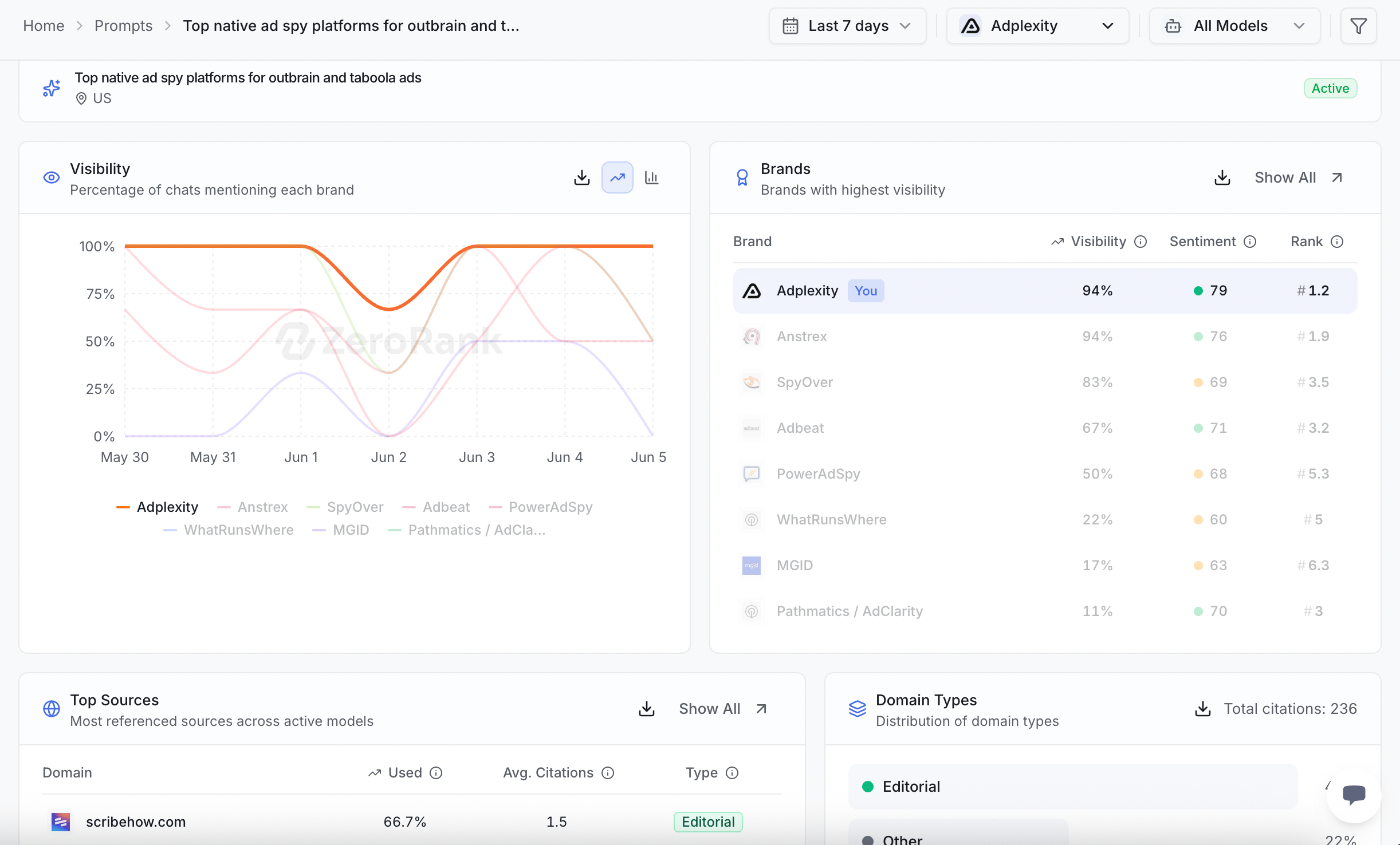
Click any prompt to open its detail page. There you see how that one question did over time. You can check whether your brand showed up, where it ranked, and which websites the AI cited. This helps you spot which questions you win and which need work.
## The three lists of prompts
Your prompts live in three lists. Each list does a different job.
These prompts are turned on. ZeroRank asks them on every scheduled run.
On most plans that means once a day. On AppSumo lifetime plans, prompts run once a week.
Active prompts count toward your plan limit.
These are ideas ZeroRank wrote for you. They are waiting for your yes or no.
A suggested prompt is not running yet. Accept it to start tracking, or reject it to clear it away.
These prompts are paused. ZeroRank keeps them but does not ask them.
Their past answers stay saved. Turn one back on any time to start tracking it again.
## How suggestions work
ZeroRank writes suggested prompts for you, so you do not start from a blank page. It builds them from what it knows about your company and your [topics](/tracking/topics-and-tags).
For each suggestion, you have two choices:
* **Accept** it. The prompt moves to your active list and starts running.
* **Reject** it. The prompt goes away and stops cluttering your list.
Want more ideas? Click **Generate** to have ZeroRank write a fresh batch of suggestions.
Track the questions your real customers actually ask. Those answers tell you the most about how buyers see your brand.
## Add your own prompts
You do not have to wait for suggestions. You can write a prompt yourself.
Go to **Prompts** in the app at [app.zerorank.ai](https://app.zerorank.ai).
Type the exact question you want AI engines to answer.
Pick a topic, add tags, and choose a location if the answer should reflect one country.
Save the prompt. It joins your active list and runs on the next scheduled cycle.
## Pause a prompt
Done with a prompt for now? Pause it instead of deleting it. A paused prompt moves to your inactive list and stops running. Its past chats stay saved, and pausing it frees up room under your plan limit. Turn it back on whenever you want.
## Organize with topics and tags
When you track many prompts, you need a way to group them. ZeroRank gives you two:
* A **topic** is one subject the prompt is about, like "pricing" or "shipping."
* **Tags** are labels you add, like "brand" or "competitor."
Topics and tags let you filter your results to one slice of your business. Learn how to set them up in [Topics and tags](/tracking/topics-and-tags).
## Look at one prompt's numbers
Click any prompt to open its detail page. There you see how that one question did over time. You can check whether your brand showed up, where it ranked, and which websites the AI cited. This helps you spot which questions you win and which need work.
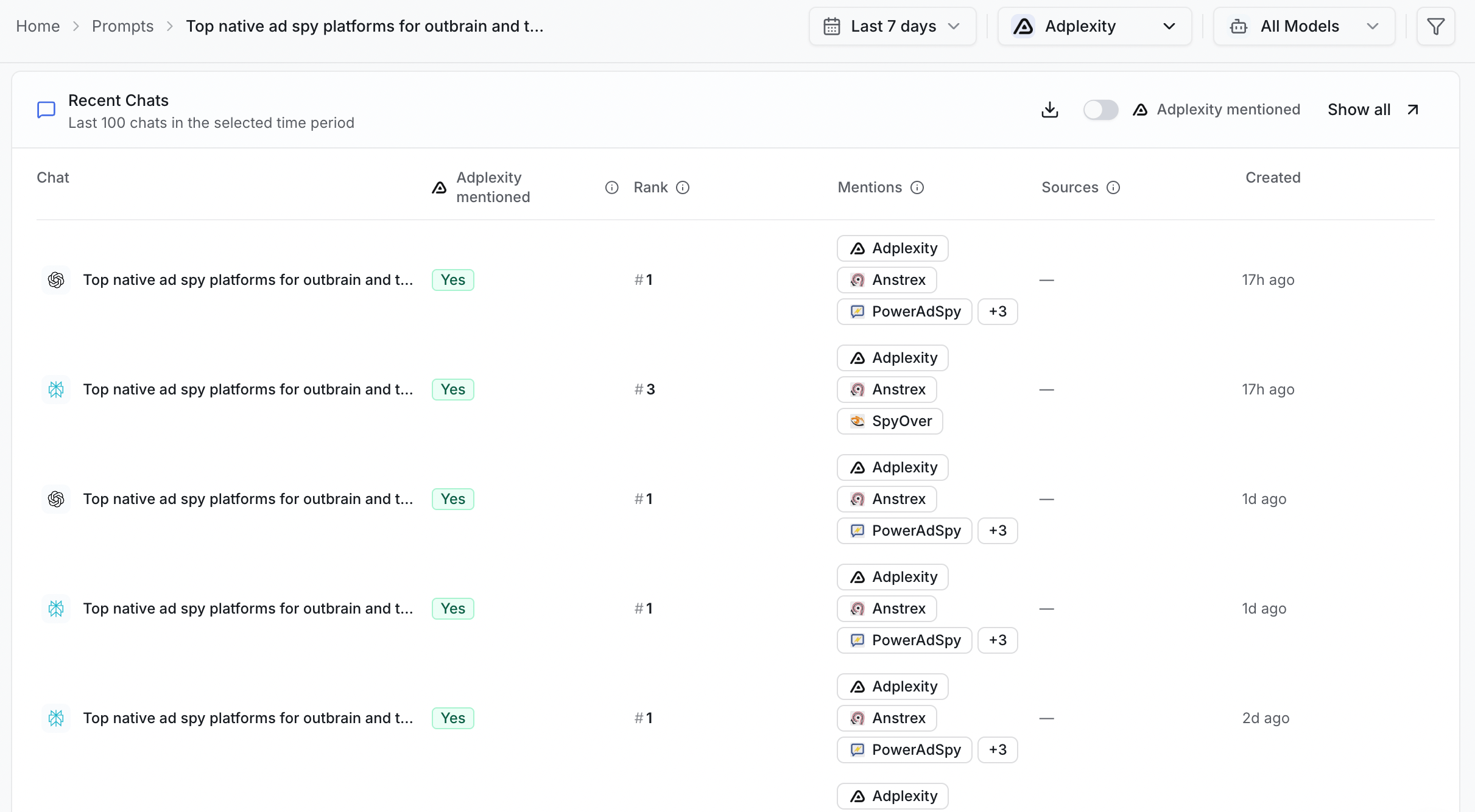
 As you scroll down on the page, you will see all the recent Chats related to that prompt and whether your brand was mentioned.
 Your plan sets how many active prompts you can track at once: 50 on Starter, 150 on Pro, and 350 or more on Enterprise. Pausing a prompt frees up a slot.
## Keep going
Group your prompts so you can filter results fast.
Read the real answers your prompts brought back.
Your plan sets how many active prompts you can track at once: 50 on Starter, 150 on Pro, and 350 or more on Enterprise. Pausing a prompt frees up a slot.
## Keep going
Group your prompts so you can filter results fast.
Read the real answers your prompts brought back.