> ## Documentation Index
> Fetch the complete documentation index at: https://docs.zerorank.ai/llms.txt
> Use this file to discover all available pages before exploring further.
# Topics and tags
> Group your prompts so your results are easy to read.
You can have a lot of [prompts](/start/glossary) (questions we ask AI engines for you). Topics and tags help you sort them. When prompts are sorted, your results are much easier to read.
## What is a topic?
A topic is a subject area you picked when you set up your workspace. It groups prompts that share a theme.
Every prompt belongs to one topic. So a topic is a big bucket, and your prompts live inside it.
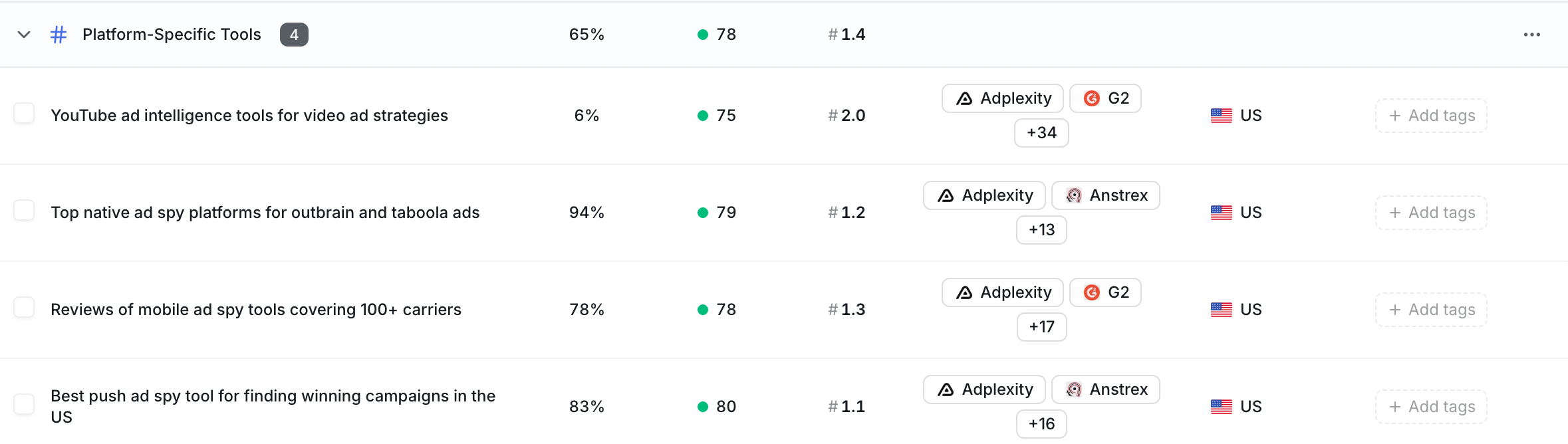 You choose your topics during setup, and you can create new ones from the same list of onboarding topics.
## What is a tag?
A tag is your own label. You make up the word, then stick it on any prompt you want.
A prompt can have many tags at once. And one tag can sit on many prompts. So tags are a flexible way to mark prompts however you like.
## When do I use each one?
Pick based on the job you want done.
| Use a topic when | Use a tag when |
| ------------------------------ | ----------------------------------- |
| You want a big, shared theme | You want your own personal label |
| You want one bucket per prompt | You want to mark a prompt many ways |
| You want to filter your scores | You want to quickly group prompts |
Here is the simple rule: a prompt has **one** topic, but it can have **many** tags.
### Short examples
* **Topic:** "Running shoes" groups every prompt about running shoes.
* **Tag:** "holiday-2026" marks the prompts you care about this season.
* **Tag:** "high-value" marks the prompts that matter most to sales.
You can put the "high-value" tag on prompts from many different topics. That is the point of tags.
## Filter your results by topic
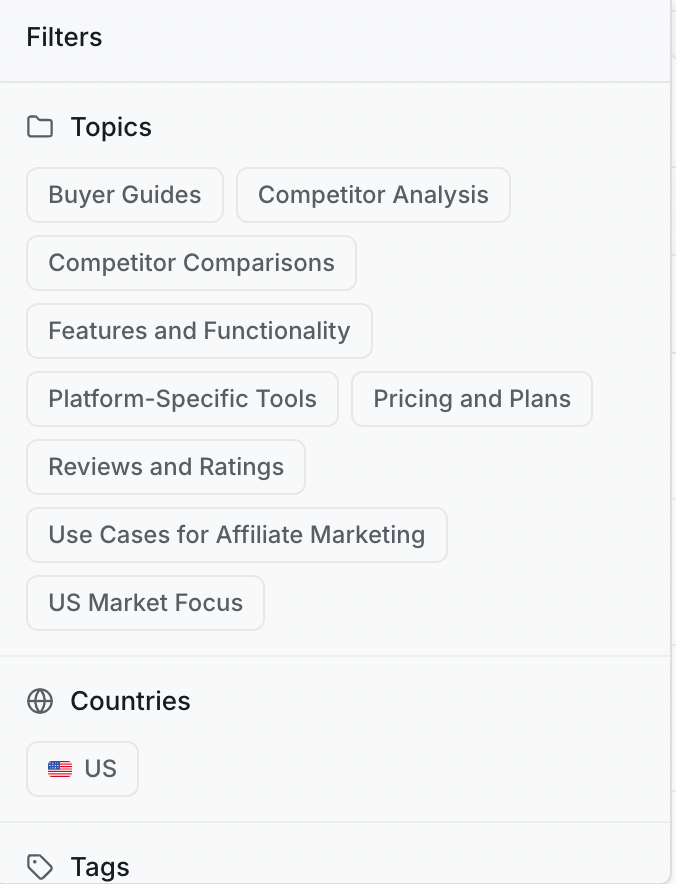
Topics make your dashboards and scores easier to read. You can filter them by one topic at a time.
For example, you can filter your [visibility score](/start/glossary) (the share of AI answers that mention your brand) by topic. That way you see how you show up for just running shoes, not everything at once.
Go to your overview dashboard or a score page in the app.
Choose a topic from the filter at the top of the page.
Now the numbers only count prompts inside that topic.
\\
You choose your topics during setup, and you can create new ones from the same list of onboarding topics.
## What is a tag?
A tag is your own label. You make up the word, then stick it on any prompt you want.
A prompt can have many tags at once. And one tag can sit on many prompts. So tags are a flexible way to mark prompts however you like.
## When do I use each one?
Pick based on the job you want done.
| Use a topic when | Use a tag when |
| ------------------------------ | ----------------------------------- |
| You want a big, shared theme | You want your own personal label |
| You want one bucket per prompt | You want to mark a prompt many ways |
| You want to filter your scores | You want to quickly group prompts |
Here is the simple rule: a prompt has **one** topic, but it can have **many** tags.
### Short examples
* **Topic:** "Running shoes" groups every prompt about running shoes.
* **Tag:** "holiday-2026" marks the prompts you care about this season.
* **Tag:** "high-value" marks the prompts that matter most to sales.
You can put the "high-value" tag on prompts from many different topics. That is the point of tags.
## Filter your results by topic
Topics make your dashboards and scores easier to read. You can filter them by one topic at a time.
For example, you can filter your [visibility score](/start/glossary) (the share of AI answers that mention your brand) by topic. That way you see how you show up for just running shoes, not everything at once.
Go to your overview dashboard or a score page in the app.
Choose a topic from the filter at the top of the page.
Now the numbers only count prompts inside that topic.
\\
 ## Manage your tags
You manage tags on the **Tags** page in the app. From there you can:
* Create a new tag.
* Attach a tag to one or more prompts.
* Remove a tag from a prompt when you no longer need it.
Because tags are your own labels, keep the words short and clear. Future-you will thank you.
Think of tags like sticky notes. You can put the same note on many prompts, and many notes on one prompt.
## Keep going
Choose the questions ZeroRank asks AI engines every day.
See how often AI answers mention your brand.
## Manage your tags
You manage tags on the **Tags** page in the app. From there you can:
* Create a new tag.
* Attach a tag to one or more prompts.
* Remove a tag from a prompt when you no longer need it.
Because tags are your own labels, keep the words short and clear. Future-you will thank you.
Think of tags like sticky notes. You can put the same note on many prompts, and many notes on one prompt.
## Keep going
Choose the questions ZeroRank asks AI engines every day.
See how often AI answers mention your brand.