> ## Documentation Index
> Fetch the complete documentation index at: https://docs.zerorank.ai/llms.txt
> Use this file to discover all available pages before exploring further.
# Workflows overview
> Build little automations with no code — like Lego blocks for tasks.
A workflow is a recipe of steps that runs on its own. You line up the steps in order, hit run, and ZeroRank does each one for you. No code needed.
Each step does one small job. The output of one step feeds into the next. String enough of them together and a whole task happens by itself.
Think of steps as Lego blocks. Each block is small, but you snap them together to build something bigger. Mix and match the blocks to make the workflow you want.
## What you can build
You decide what the steps do. Here is one example, all in a single run:
1. Research a topic on the web.
2. Draft an article from what it found.
3. Score the article for [AEO](/start/glossary) (Answer Engine Optimization — making your content easy for AI to find and quote). See [AEO score](/improve/aeo-score).
4. Post the article to your [WordPress](/integrations/wordpress) site.
5. Ping your team in [Slack](/integrations/slack-and-ai-tools) to say it is done.
That is five steps doing the work you would normally do by hand. You can swap any step, add more, or split the path two ways with a branch.
## The visual builder
You build workflows on a canvas, not in a text file. Each step is a box (a node) that you drag in and connect with a line. The order of the lines is the order things run.
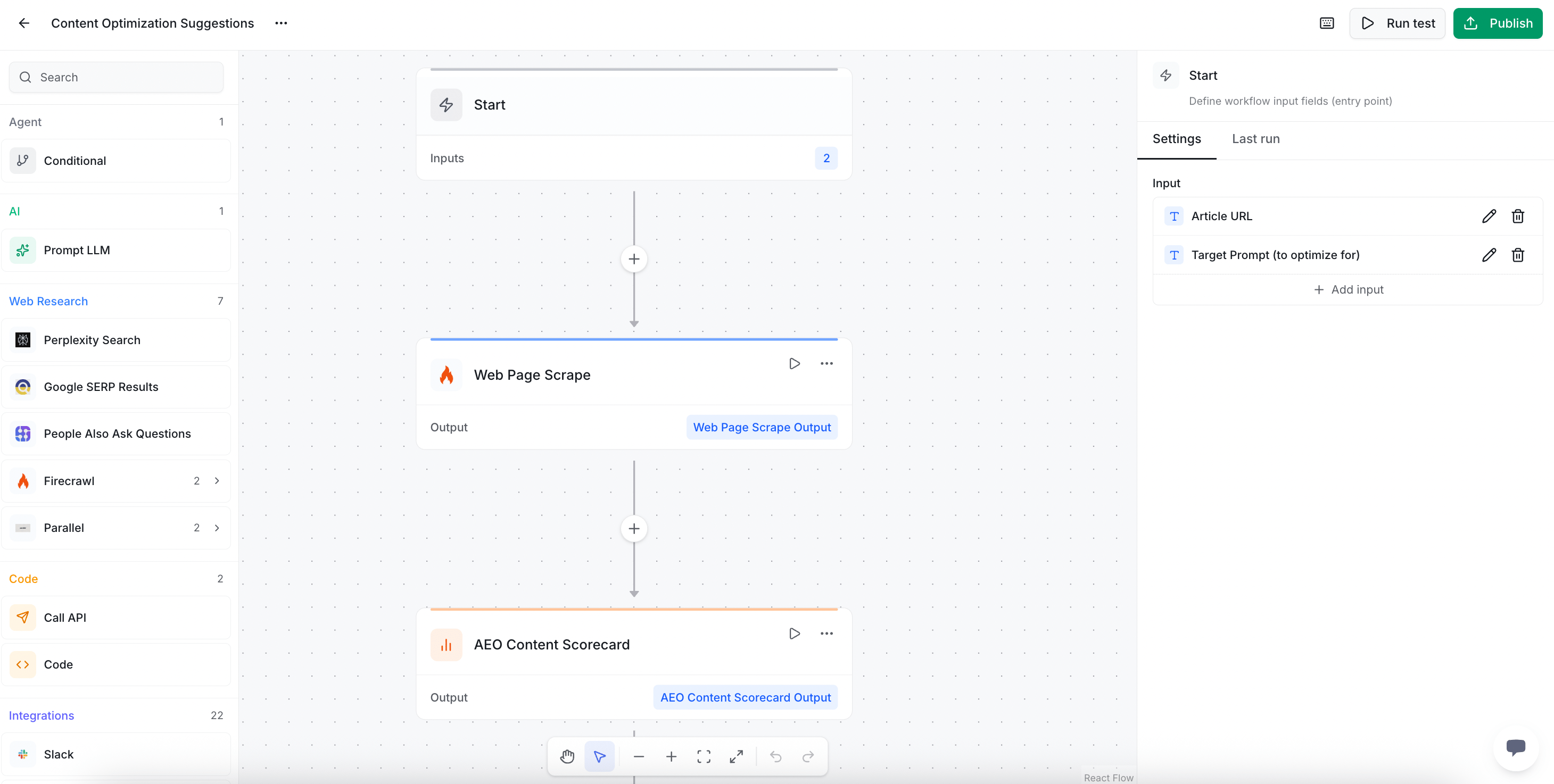 You can also save a workflow as a template to reuse it. You can set a schedule so it runs on a timer. You can keep versions of your changes. And you can look back at the run history to see every past run.
## The 12 step categories
Steps come in 12 groups. Here is what each group is for, in plain words.
Start a run, end it, or split the path two ways with a branch.
Ask a language model to write or answer something.
Search and scrape the web for fresh info.
Run a small script or call any API.
Use your connected tools, like WordPress and Slack.
Pull your own scores, sentiment, and citations.
Draft titles, briefs, and full articles.
Score and sharpen content for AI engines.
Dig up facts and build research reports.
Grab details and transcripts from YouTube videos.
Find keyword ideas and search volumes.
Search, read, and add files in your knowledge base.
There are 55+ steps across these 12 groups. You will find the full, up-to-date catalog inside the app when you build a workflow.
## Keep going
Make your first workflow on the canvas, step by step.
Start from a ready-made template and run it on a timer.
You can also save a workflow as a template to reuse it. You can set a schedule so it runs on a timer. You can keep versions of your changes. And you can look back at the run history to see every past run.
## The 12 step categories
Steps come in 12 groups. Here is what each group is for, in plain words.
Start a run, end it, or split the path two ways with a branch.
Ask a language model to write or answer something.
Search and scrape the web for fresh info.
Run a small script or call any API.
Use your connected tools, like WordPress and Slack.
Pull your own scores, sentiment, and citations.
Draft titles, briefs, and full articles.
Score and sharpen content for AI engines.
Dig up facts and build research reports.
Grab details and transcripts from YouTube videos.
Find keyword ideas and search volumes.
Search, read, and add files in your knowledge base.
There are 55+ steps across these 12 groups. You will find the full, up-to-date catalog inside the app when you build a workflow.
## Keep going
Make your first workflow on the canvas, step by step.
Start from a ready-made template and run it on a timer.