

What is inside the report
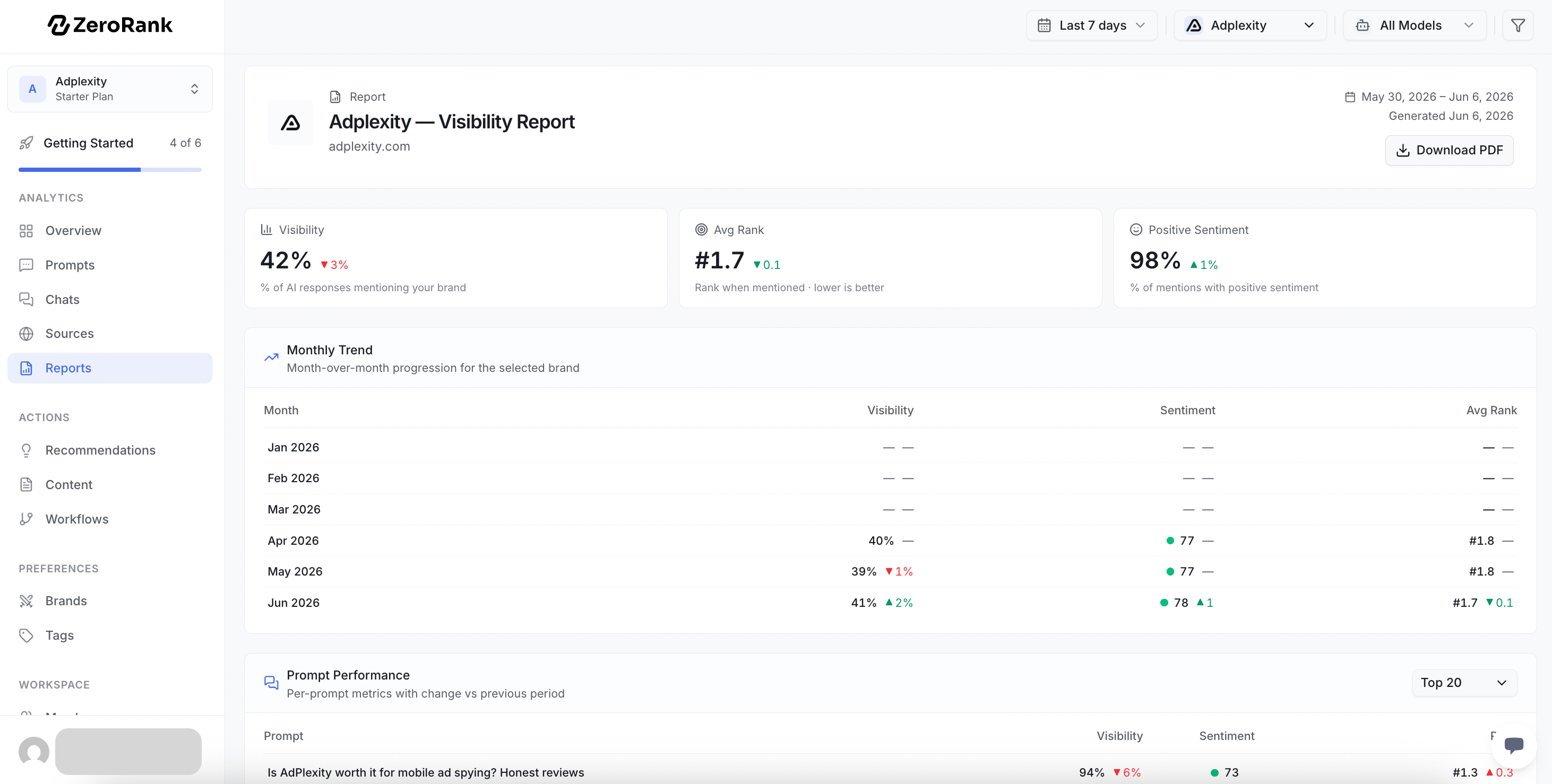
The report has 9 parts, always in the same order.KPI summary
KPI summary
The three headline numbers up top. They are your visibility score (the share of AI answers that mention your brand), your average rank, and the share of mentions that were positive. KPI is short for key performance indicator. That just means “a number worth watching.”
Brand rankings
Brand rankings
A list of your brand next to your competitors. Each one shows its visibility, its rank, and its sentiment (whether the AI talked about you in a good, okay, or bad way). It also shows how each of those changed since last period.
Visibility chart
Visibility chart
A line chart that shows the visibility trend over time, with one line per brand. You can see who is climbing and who is slipping.
Prompt events timeline
Prompt events timeline
A simple timeline of how many chats (the answers an AI engine gave back) ran each day. It helps you spot busy days and quiet days at a glance.
Prompt breakdown
Prompt breakdown
A table with one row per prompt (a question we ask AI engines for you). Each row shows the prompt’s volume (how many chats ran), visibility, average position, mentions, and sentiment.
Highlights
Highlights
The biggest movers in one place: your top 3 gainers (prompts where visibility rose the most) and your top 3 decliners (where it fell the most).
Sentiment breakdown
Sentiment breakdown
How many mentions were positive, neutral, and negative, with the count for each. It also shows how those counts changed from last period.
Monthly trend
Monthly trend
A 6-month view of visibility, sentiment, and average position. It shows the bigger story behind the day-to-day ups and downs.
Comparison period
Comparison period
The exact dates being compared: the start and end of this period, and the start and end of the period before it. This tells you what “change” is measured against.
Most numbers in the report come with a change next to them. A change is the difference from the period before, so you can tell if things got better or worse.
How to export a PDF
1
Open the Reports page
Go to app.zerorank.ai and open the Reports page.
2
Check the report
Make sure you are looking at the right brand and the right dates.
3
Export the report
Use the export option on the page. ZeroRank turns the report into a PDF file.
4
Save the file
The PDF downloads to your computer. Now it is yours to keep and share.
How to share it
Once you have the PDF, you can share it like any other file. Email it to your boss, drop it in a team chat, or add it to a slide deck. It reads well on its own, so the person who gets it does not need a ZeroRank login.Keep going
Overview dashboard
See your live numbers any day, not just at month’s end.
Visibility score
Learn what the share-of-answers number really means.